Users often make mistakes with Android Auto, causing technical issues or missing features. Here's how to fix them.
Key facts
- •Using the wrong cable can cause Android Auto issues
- •Wired connections are faster and more responsive than wireless
- •Wireless connections can drain your phone's battery
- •Battery optimizer and battery saver can throttle Android Auto
- •Several mobile games are compatible with Android Auto
- •Games can be played on the car's screen with progress saved on the phone
Android Auto users commonly make mistakes that can trigger technical issues or cause them to miss features. These mistakes can be related to phone settings or cables. Using the right cable and settings can make Android Auto more efficient and safer.
Cable Connection Issues
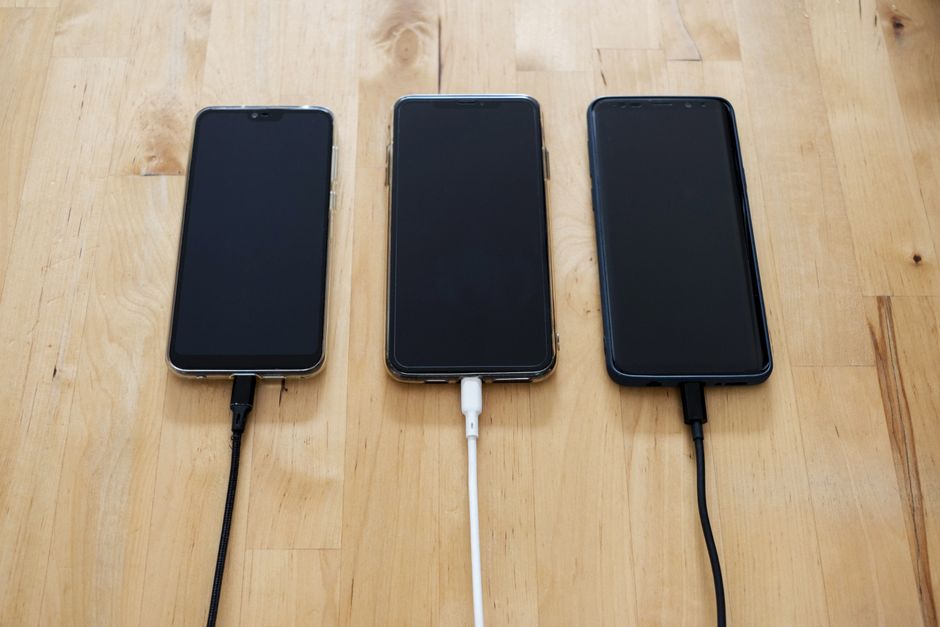
Using a cable from a junk drawer or gas station can cause problems with Android Auto. Some cables only support slow data transfer or not at all, and damaged or old cables can cause issues. It's recommended to use a data transfer cable from a reputable brand like Anker and avoid using unnecessarily long cables.
Wireless Connection Limitations
While wireless connection is convenient, it's not always the best way to use Android Auto. Wired connections are noticeably faster and more responsive, and wireless connections can tax your phone's battery. Wireless connections use Wi-Fi and Bluetooth constantly, which can drain your battery.
Battery Settings and Games
Having battery optimizer or battery saver on can throttle Android Auto. To avoid this, go to Settings > Apps > Android Auto > Battery and choose 'Unrestricted.' Additionally, several mobile games are compatible with Android Auto, including Angry Birds Friends, Beach Buggy Racing, and Candy Crush Soda Saga. These games can be played on the car's screen, and progress is saved on the phone.