
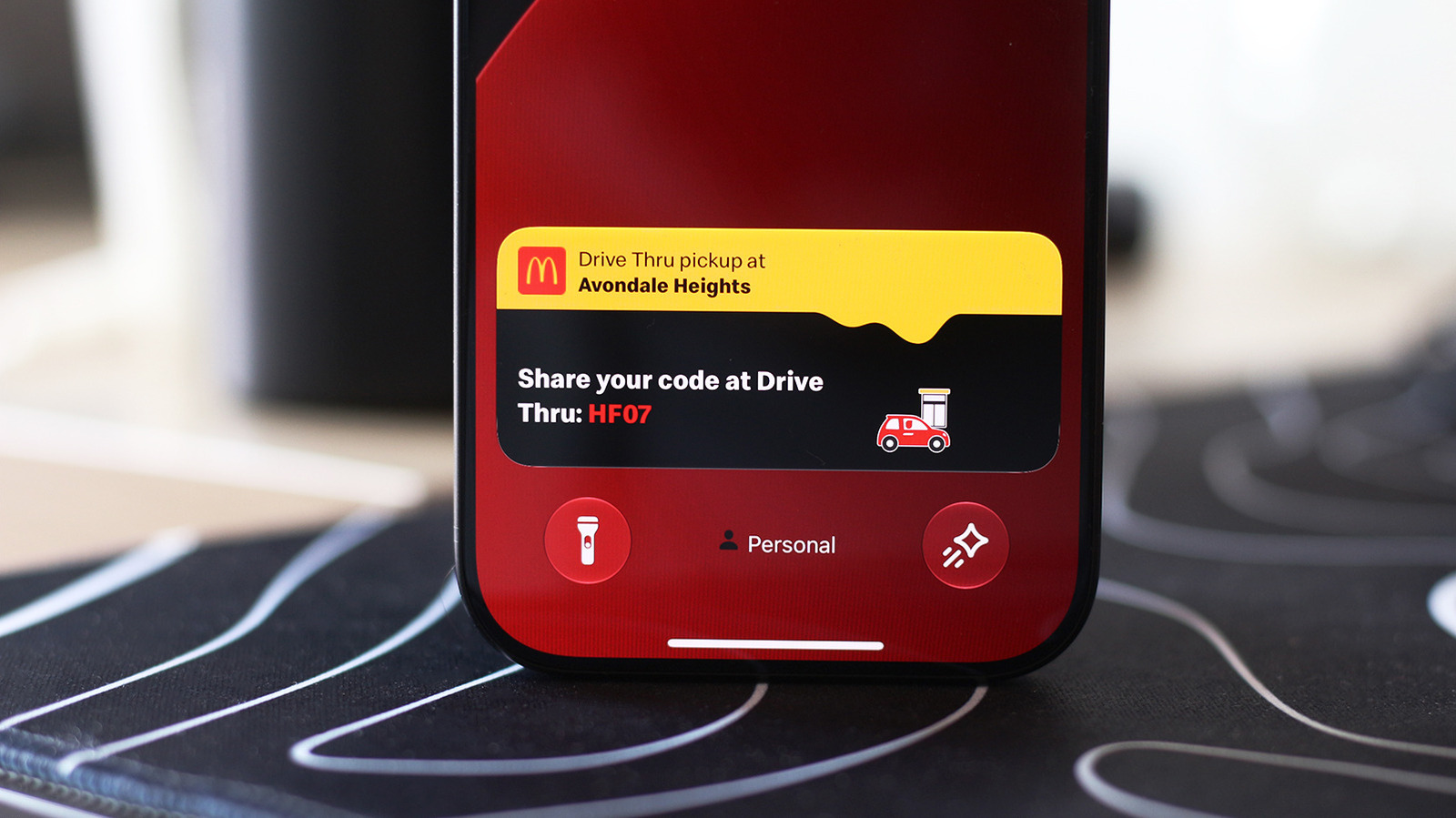
Live Activities allow users to track real-time updates like sports scores and navigation directly on the Dynamic Island, Lock screen, and CarPlay dashboard.
Key facts
- •Live Activities display information such as timers, navigation, music playback, and sports scores.
- •Users can manage app-specific Live Activities through the Settings menu on their iPhone.
- •Lock screen access for Live Activities is controlled within the Face ID & Passcode settings.
- •CarPlay displays Live Activities on the dashboard or as notifications if an app is in full-screen mode.
- •Driving Focus mode may prevent Live Activities from appearing on the CarPlay display.
Apple's Live Activities feature provides real-time updates for apps such as navigation, music, and food delivery without requiring users to open the application. These updates appear on the iPhone's Dynamic Island and Lock screen, and can also be integrated into the CarPlay dashboard for easier access while driving.
Enabling Live Activities on iPhone
Live Activities are typically enabled by default, but users can verify settings by navigating to the Settings app, selecting a specific app, and ensuring the Live Activities slider is toggled on. If updates are not appearing, users may also need to enable standard notifications for that app. To view these updates on the Lock screen, users must go to Settings, select Face ID & Passcode, enter their passcode, and ensure the Live Activities option is enabled under the 'Allow Access When Locked' section.
Using Live Activities with CarPlay
When connected to CarPlay, Live Activities automatically appear on the dashboard's split-screen view. If an app is running in full-screen mode, these updates appear as notifications at the bottom of the display. To troubleshoot missing updates, users should check the Settings app within CarPlay to ensure the Live Activities toggle and the 'Suggestions in CarPlay' or 'Suggestions in Dashboard' options are enabled. If issues persist, users should check if Driving Focus is active, as this may interfere with the display.
Advertisement
This article was independently rewritten by ManyPress editorial AI from reporting originally published by Engadget.